Getting the right alerts to the right people at the right time is crucial for minimizing downtime. This guide covers everything about configuring alert integrations for your monitoring setup.
The Alert Integration Landscape
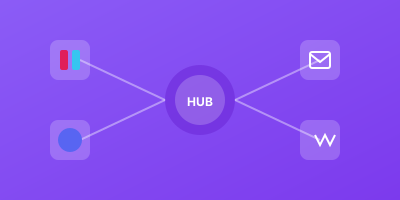
Modern monitoring tools support multiple notification channels:
| Channel | Best For | Response Time |
|---|---|---|
| SMS | Critical, on-call alerts | Immediate |
| Phone call | Wake-up calls, escalations | Immediate |
| Slack/Discord/Teams | Team visibility | Fast |
| Non-urgent, documentation | Slow | |
| PagerDuty/OpsGenie | On-call management | Immediate |
| Webhooks | Custom integrations | Varies |
Choosing the Right Channel
Criticality-Based Routing
Match alert severity to notification channel:
Critical (Service down):
- SMS to on-call engineer
- PagerDuty escalation
- Slack #incidents channel
Warning (Degraded performance):
- Slack team channel
- Email to stakeholders
Info (Minor issues):
- Email digest
- Dashboard only
Time-Based Routing
Different channels for different hours:
Business hours (9 AM - 6 PM):
- Slack primary
- Email backup
After hours:
- PagerDuty with escalation
- SMS to on-call
Core Integration Types
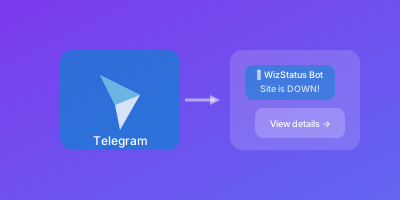
Team Messaging (Slack, Discord, Teams)
Best for:
- Real-time team visibility
- Collaborative incident response
- Quick acknowledgment
Features to look for:
- Rich message formatting
- Action buttons (acknowledge, resolve)
- Thread support
- Channel routing by severity
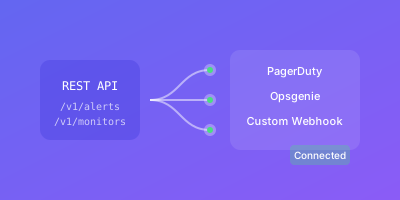
Incident Management (PagerDuty, OpsGenie)
Best for:
- On-call rotation management
- Escalation policies
- SLA tracking
- Post-incident analysis
Features to look for:
- Schedule management
- Escalation rules
- Incident timelines
- Analytics and reporting
Custom Webhooks
Best for:
- Custom systems integration
- Triggering automation
- Multi-system orchestration
- Unique workflow requirements
Typical uses:
- Auto-scaling triggers
- Custom dashboards
- Third-party notifications
- Automated remediation
Setting Up Multi-Channel Alerting
Alert Flow Architecture
Monitor detects issue
        ↓
Alert rule evaluates severity
        ↓
Route to appropriate channels:
├── Critical → PagerDuty + Slack #incidents
├── Warning → Slack #ops + Email
└── Info → Email digest
Avoiding Alert Fatigue
Too many alerts = ignored alerts. Prevent fatigue by:
- Set appropriate thresholds - Not every slow response is critical
- Use deduplication - Don't repeat alerts for ongoing issues
- Group related alerts - One notification for related failures
- Establish clear ownership - Someone specific for each alert
- Regular tuning - Review and adjust monthly
Ensuring Delivery
Alerts that don't arrive are useless:
- Test integrations regularly - Send test alerts weekly
- Use backup channels - If Slack fails, SMS still works
- Monitor the monitoring - Alert on integration failures
- Document configurations - Know what's set up
Integration Best Practices
Naming Conventions
Use consistent, descriptive names:
Good:
- #alerts-production-critical
- #alerts-staging-all
- pagerduty-primary-oncall

Bad:
- #alerts
- alerts2
- test-notifications
Message Formatting
Include essential information:
🔴 CRITICAL: Production API Down

Service: api.example.com
Status: HTTP 500
Duration: 5 minutes
Location: US-East

[View Dashboard] [Acknowledge]
Escalation Policies
Define clear escalation paths:
T+0:  Alert to Slack #on-call
T+5:  SMS to primary on-call
T+15: Phone call to primary
T+30: SMS to secondary on-call
T+45: Notify engineering manager
Channel-Specific Tips
Slack
- Use dedicated channels per environment
- Enable threading for cleaner history
- Add action buttons for quick response
- Integrate with Slack workflows
Discord
- Use webhooks with embeds for rich formatting
- Create role mentions for teams
- Separate servers for test vs production
Microsoft Teams
- Use Incoming Webhooks connector
- Create dedicated teams/channels
- Consider Power Automate for complex flows
PagerDuty
- Set up proper on-call schedules first
- Define escalation policies
- Use urgency levels appropriately
- Enable auto-resolution
- Use for summaries and documentation
- Avoid for time-sensitive alerts
- Consider digest mode for high-volume
- Include actionable links
Webhook Integration Deep Dive
Webhook Payload Structure
Typical alert webhook:
{
  "monitor": "Production API",
  "status": "down",
  "url": "https://api.example.com",
  "timestamp": "2026-01-31T14:30:00Z",
  "duration": 300,
  "location": "US-East",
  "response_code": 500,
  "alert_id": "abc123"
}
Building Custom Integrations
Example: Trigger auto-scaling on alert
from flask import Flask, request
import boto3

app = Flask(__name__)
autoscaling = boto3.client('autoscaling')

@app.route('/webhook', methods=['POST'])
def handle_alert():
    data = request.json

    if data['status'] == 'down' and 'api' in data['monitor'].lower():
        # Scale up API instances
        autoscaling.set_desired_capacity(
            AutoScalingGroupName='api-asg',
            DesiredCapacity=10
        )

    return {'status': 'ok'}
Securing Webhooks
- Use HTTPS - Never send alerts over HTTP
- Validate signatures - Verify requests are authentic
- IP allowlisting - Restrict to known sources
- Secret tokens - Include in URL or headers
Troubleshooting Integrations
Alerts Not Arriving
Check in order:
- Integration enabled and configured correctly?
- Alert rules match the condition?
- Network connectivity to service?
- Service (Slack, etc.) experiencing issues?
- Rate limits being hit?
Delayed Alerts
Common causes:
- Email server delays
- Webhook endpoint slow
- Rate limiting
- Queue backlog
Solutions:
- Use real-time channels for critical
- Monitor integration latency
- Have backup channels
Duplicate Alerts
Causes:
- Multiple monitors for same target
- Alert rules overlapping
- Recovery + re-trigger loop
Solutions:
- Deduplication windows
- Clear alert boundaries
- Proper recovery detection
Integration Checklist
- Primary notification channel configured
- Backup channel for redundancy
- Critical alerts have immediate channels (SMS/PagerDuty)
- Non-critical alerts don't spam immediate channels
- Escalation policies defined
- Test alerts sent and verified
- Documentation updated
- Regular review scheduled
Conclusion
Effective alert integration ensures the right people learn about issues fast enough to act. The goal isn't more alerts—it's better alerts delivered through appropriate channels.
Start with critical path notifications (is production down?), then expand to warnings and informational alerts as your monitoring matures.